

Table of Contents
ToggleIntroduction
In the modern business landscape, data is one of your organization’s most valuable assets. Salesforce administrators face a constant challenge: how to grant the right people access to the right records without compromising security or creating unnecessary complexity. This is where sharing rules in Salesforce become your most powerful ally.
Whether you manage distributed teams across multiple regions, need to share records between departments, or want to grant conditional access based on specific criteria, sharing rules provide the granular control you need to manage data access effectively.
In this comprehensive guide, we’ll explore everything you need to know about sharing rules in Salesforce—from the fundamentals to advanced implementation strategies that will help you optimize your organization’s Data Security posture.
What Are Sharing Rules in Salesforce?
Sharing rules in Salesforce are automated mechanisms that extend data access to users who don’t own records or who fall outside the standard role hierarchy. They create automatic exceptions to your Organization-Wide Default (OWD) settings, allowing administrators to grant broader access to specific groups of users based on predefined criteria or record ownership.
Think of sharing rules as the bridge between rigid security models and the flexible, collaborative nature of modern business operations. They enable data sharing across organizational silos while maintaining overall security controls.
Key Characteristics of Sharing Rules
- Extend Access Only: Sharing rules can only widen access permissions; they cannot restrict access that’s already been granted by OWD settings
- Rule-Based Automation: Eliminate the need for manual sharing by automatically applying access rules based on conditions you define
- Multiple Object Support: Create sharing rules for both standard objects (like Accounts and Opportunities) and custom objects
- Non-Restrictive: When OWD is already public with read/write access, sharing rules are unnecessary
Why Do You Need Sharing Rules?
Real-World Scenario
Imagine you’re managing a multinational company with sales teams in the United States, Europe, and Asia-Pacific. Each team handles their own regional accounts and opportunities. However, your CEO occasionally needs insights into deals across all regions. Your organization-wide default is set to “Private” for accounts to maintain data integrity.
Without sharing rules, you’d have two options:
- Manually share each record with executives (time-consuming and error-prone)
- Change OWD to public (compromising security across the entire organization)
With sharing rules, you can automatically grant the executive team read-only access to all accounts, regardless of region, without exposing data to unintended users.
When Sharing Rules Are Essential
- Cross-Functional Collaboration: Marketing and sales teams need to view each other’s leads but at the peer level (not via hierarchy)
- Conditional Access: Only specific records meeting certain criteria should be shared (e.g., “Unqualified” leads for marketing review)
- Territory Management: Teams in different geographic regions need mutual visibility of accounts
- Customer Success: Support teams need access to relevant accounts beyond what their role hierarchy provides
- Executive Oversight: Leadership needs visibility into critical opportunities or accounts across departments
Understanding the Salesforce Security Model
Before implementing sharing rules, it’s crucial to understand how they fit into Salesforce’s four-layered security model:
| Security Layer | Mechanism | Function |
|---|---|---|
| 1. Organization-Wide Defaults | OWD | Sets the baseline access level for all users |
| 2. Role Hierarchy | Role Hierarchy | Allows managers to access subordinates’ records |
| 3. Sharing Rules | Automated Rules | Extends access to users outside the role hierarchy |
| 4. Manual Sharing | Individual Action | Grants one-off access when needed |
Sharing rules sit at the third layer, operating within the constraints of your OWD. They work in conjunction with, not against, your organization’s security foundation.
Types of Sharing Rules in Salesforce
Salesforce provides two distinct types of sharing rules, each serving different business needs:
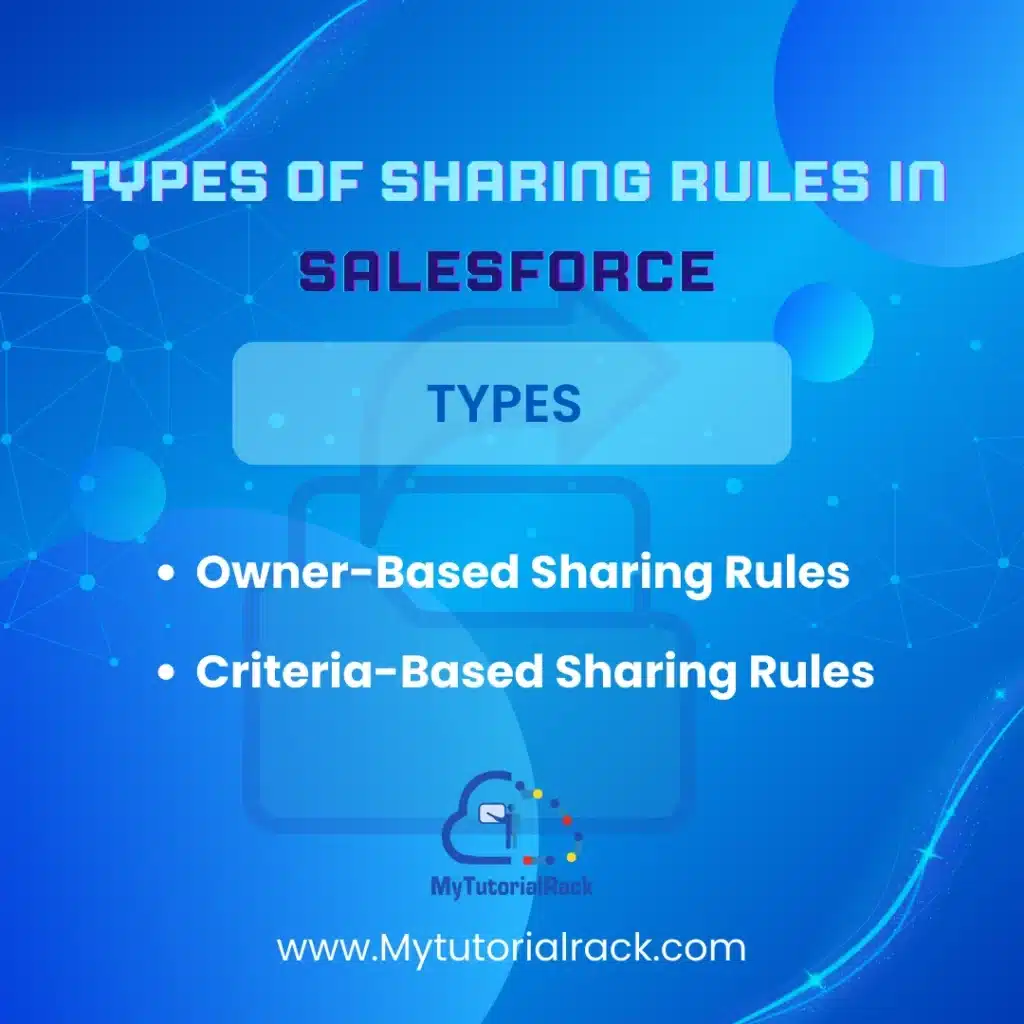
1. Owner-Based Sharing Rules
Owner-based sharing rules grant access to records owned by specific users or groups to other users or groups. This type of sharing rule focuses on who owns the records rather than what those records contain.
When to Use Owner-Based Sharing Rules:
- A team in one region needs to access records owned by a team in another region
- Support managers need visibility into all cases owned by team members
- Strategic accounts owned by specific account executives need to be shared with account teams
- Cross-departmental collaboration where ownership is clearly defined
Example:
Your U.S. sales team owns a set of accounts. You want to share these records with your Europe and APAC teams to facilitate cross-regional collaboration. An owner-based sharing rule automatically grants the European and APAC teams read/write access to all accounts owned by the U.S. team.
2. Criteria-Based Sharing Rules
Criteria-based sharing rules grant access to records that meet specific field-level conditions, regardless of who owns them. This type is ideal for conditional sharing based on record characteristics.
When to Use Criteria-Based Sharing Rules:
- Share all “Cold” leads with the marketing team for nurturing
- Grant finance access to opportunities with deal sizes above a certain threshold
- Allow customer success teams to view accounts marked as “High Priority”
- Enable regional managers to see all accounts in their geography
- Share records with specific access levels based on record status or stage
Example:
Your organization has thousands of leads. Typically, sales reps own their leads exclusively. However, when a lead reaches the “Unqualified” status, you want marketing specialists to access it for lead nurturing. A criteria-based sharing rule automatically grants marketing team members read-only access to all “Unqualified” leads, regardless of the original owner.
The Three Components of Sharing Rules
Every sharing rule in Salesforce answers three fundamental questions:
1. Which Records Should Be Shared?
This component identifies the scope of your sharing rule:
For Owner-Based Rules:
- Select users by individual account
- Select by role
- Select by role and subordinates
- Select by public group (a group of users with a common purpose)
For Criteria-Based Rules:
- Define field conditions (e.g., “Stage equals Closed Won”)
- Use operators like equals, contains, less than, greater than
- Combine multiple conditions for complex logic
2. With Whom Should Records Be Shared?
Specify the recipients of the shared records:
- Individual Users: For one-off sharing scenarios
- Roles: Grant access to all users in a specific role
- Roles and Subordinates: Include role hierarchy descendants
- Public Groups: Share with a pre-defined group of mixed user types
- Territories: If using territory management
3. What Level of Access Should Be Granted?
Define the permissions recipients receive:
- Read Only: View records but cannot modify
- Read/Write: Full edit capability on shared records
- Full Access: Edit records and potentially delete or perform other administrative actions (rarely used)
How to Create Sharing Rules in Salesforce: Step-by-Step
Prerequisites
Before creating sharing rules, ensure:
- You have Salesforce administrator or equivalent permissions
- Organization-wide defaults are configured for the object
- Public groups (if needed) have been created
Step 1: Navigate to Sharing Settings
- Click the Setup gear icon in the top-right corner
- Type “Sharing Settings” in the Quick Find box
- Click on Sharing Settings
Step 2: Select Your Object
Scroll down to find the object for which you want to create a sharing rule (e.g., Accounts, Opportunities, custom objects). You’ll see the existing OWD and any existing sharing rules.
Step 3: Create a New Sharing Rule
In the Sharing Rules section, click the New button.
Step 4: Configure the Rule Details
Label and Name:
- Enter a descriptive label (e.g., “Share U.S. Accounts with EMEA Team”)
- The rule name auto-populates; this is the unique API name
Rule Type:
- Select Based on record owner for owner-based rules
- Select Based on record criteria for criteria-based rules
Step 5: Define Share Scope (Owner-Based) or Criteria (Criteria-Based)
For Owner-Based Rules:
- First dropdown: Select a category (e.g., “User”, “Role”, “Role and Subordinates”, “Public Group”)
- Second dropdown: Select specific users, roles, or groups
For Criteria-Based Rules:
- Field: Choose the field to evaluate (e.g., “Stage”, “Record Type”, “Status”)
- Operator: Select a logical operator (equals, not equals, contains, greater than, etc.)
- Value: Enter the condition value (e.g., “Unqualified”)
Step 6: Specify Share With
- First dropdown: Select the recipient category
- Second dropdown: Choose specific recipients (roles, public groups, etc.)
Step 7: Select Access Level
- Read Only: Recipients can view records
- Read/Write: Recipients can edit records
Step 8: Save
Click Save to activate your sharing rule. Salesforce will immediately apply the rule to all matching records.
Best Practices for Implementing Sharing Rules
1. Plan Before You Build
Document your data sharing requirements before creating rules:
- Which records need to be shared?
- Who needs access?
- What level of access do they need?
- Are there any exceptions?
2. Use Public Groups for Flexibility
Instead of creating separate sharing rules for each user or role combination, leverage public groups. Public groups can contain:
- Individual users
- Roles
- Roles and subordinates
- Other public groups
- Territories
This approach makes sharing rules easier to maintain. When team composition changes, update the public group rather than modifying multiple sharing rules.
3. Keep It Simple
More sharing rules mean more complexity and potential performance impacts. Before creating a rule, ask: “Is there a simpler way to achieve this with the current security model?”
4. Document Everything
Maintain a record of your sharing rules, including:
- The business reason for each rule
- When it was created
- Who created it
- Any dependencies or related rules
5. Regularly Audit Your Rules
Periodically review your sharing rules to ensure they:
- Still serve a business purpose
- Don’t create unintended access
- Align with your current organizational structure
6. Test Before Production
If possible, test sharing rules in a sandbox environment before deploying to production. Verify that the right records are being shared with the right users.
7. Monitor Performance
Excessive sharing rules can impact query performance, especially for criteria-based rules. Monitor your org’s performance and optimize rules if needed.
Common Challenges and Solutions
Challenge 1: Sharing Rules Don't Restrict Access
Problem: You’ve created a sharing rule, but users still can’t see records you intended to share, or they can see records you wanted to restrict.
Solution: Remember that sharing rules only extend access; they cannot restrict it. If users can see records you didn’t intend to share, the issue is likely with your OWD settings, not your sharing rule. Conversely, if users can’t see shared records, verify that:
- The sharing rule is correctly configured
- The rule is actually matching the records you think it is
- The OWD hasn’t been changed
Challenge 2: Performance Degradation
Problem: After implementing many criteria-based sharing rules, query performance has noticeably slowed.
Solution: Criteria-based sharing rules must be evaluated frequently, which can impact performance. Consider:
- Consolidating multiple criteria-based rules into public groups and owner-based rules
- Using simpler field conditions
- Consulting with Salesforce to understand your sharing rule limits
Challenge 3: Managing Complex Hierarchies
Problem: Your organization’s structure is complex with multiple levels and overlapping teams, making it hard to define clear sharing rules.
Solution: Use public groups to simplify the structure. Create logical groups that represent business functions rather than organizational hierarchy. This makes sharing rules more maintainable and easier to update.
Challenge 4: Users Getting Unintended Access
Problem: Users have access to records they shouldn’t through some combination of OWD, role hierarchy, and sharing rules.
Solution: Create a sharing matrix documenting exactly who should have access to what. Then audit your security settings against this matrix. Use the Sharing Settings page to visualize who has access to which records.
Limitations of Sharing Rules
Understanding the limitations of sharing rules helps you set realistic expectations:
- Access Expansion Only: Sharing rules cannot restrict access already granted by OWD or role hierarchy
- Performance Considerations: Excessive sharing rules, particularly criteria-based rules, can impact performance
- Record Access: Sharing rules grant access to specific records but also typically grant access to related records through lookup relationships
- No Scheduled Execution: Sharing rules evaluate every time records are accessed, not on a schedule
- Limit of 300 Per Object: By default, you can create up to 300 sharing rules per object (extendable to 500 via support case)
- Criteria-Based Limit: Maximum of 50 criteria-based sharing rules per object
- No Conditional Complexity: You can’t create “OR” conditions across multiple fields in a criteria-based rule; all conditions must be met (“AND” logic)
Real-World Use Cases
Use Case 1: Multi-Regional Sales Organization
Scenario: Your company has three regional sales teams (North America, EMEA, APAC), each managing their own accounts. However, executives need visibility across all regions, and teams occasionally collaborate on cross-regional deals.
Solution: Create owner-based sharing rules:
- Share all accounts owned by NA team with EMEA and APAC teams (read-only)
- Share all accounts owned by EMEA team with NA and APAC teams (read-only)
- Share all accounts owned by APAC team with NA and EMEA teams (read-only)
- Share all accounts with executives (read-only)
Use Case 2: Lead Routing and Nurturing
Scenario: Unqualified leads should be handled by marketing for nurturing, while qualified leads are managed by sales. Currently, all leads are owned by sales reps.
Solution: Create a criteria-based sharing rule:
- Share all records where “Status = Unqualified” with the Marketing Public Group (read-only)
- This grants marketing visibility to prospects that sales has identified as not yet ready, allowing marketing to nurture them until they’re sales-ready
Use Case 3: Financial Authorization Levels
Scenario: Finance managers need to review all opportunities above a certain deal value, while sales owns their own opportunities.
Solution: Create a criteria-based sharing rule:
- Share all records where “Amount > $500,000” with the Finance Director role (read-only)
- This automatically grants finance oversight of high-value deals without requiring manual sharing
Use Case 4: Customer Success Handoff
Scenario: When a deal closes, the customer success team needs immediate visibility into the account and opportunity details, even though sales owns the records.
Solution: Create a criteria-based sharing rule:
- Share all records where “Stage = Closed Won” with the Customer Success Public Group (read-only)
- This automatically grants the success team access to accounts and opportunities they’ll be supporting
Comparing Sharing Rules to Other Access Control Methods
| Method | Use Case | Flexibility | Maintenance |
|---|---|---|---|
| OWD | Baseline access for all users | Low | Minimal |
| Role Hierarchy | Manager-to-subordinate relationships | Low | Low (follows org structure) |
| Sharing Rules | Peer-level and conditional access | High | Moderate |
| Manual Sharing | One-off exceptions | Very High | Requires active management |
| Permission Sets | Feature access, not record access | N/A | Moderate |
For most organizations, a combination of all methods provides the most effective security model.
Advanced Sharing Rules Strategies
Strategy 1: Public Groups for Flexibility
Instead of hardcoding roles or users in sharing rules, create public groups. Public groups can contain any combination of:
- Individual users
- Roles with or without subordinates
- Other public groups
When team structure changes, update the public group. Your sharing rules automatically reflect the new membership.
Strategy 2: Tiered Access Model
Create criteria-based sharing rules that grant different access levels based on record characteristics:
- High-value records (Amount > $1M): Read/Write access to senior team
- Mid-value records ($500K-$1M): Read/Write access to team leads
- Standard records (< $500K): Read-only access to broader team
Strategy 3: Combining Owner and Criteria-Based Rules
Use owner-based rules for broad team collaboration and criteria-based rules for exceptions:
- Owner-based rule: Share all NA accounts with EMEA teams (broad collaboration)
- Criteria-based rule: Share strategic accounts (where “Account Type = Strategic”) with executives (targeted access)
Key Terms and Definitions
Organization-Wide Default (OWD): The baseline access level for records, defining whether they’re private, public read-only, or public read/write.
Public Group: A collection of users, roles, or other groups that can be referenced in sharing rules and other features.
Sharing Rule: An automated mechanism that extends access beyond what OWD and role hierarchy provide.
Criteria-Based Sharing: Access granted based on field conditions being met.
Owner-Based Sharing: Access granted to records owned by specific users or groups.
Record Access: The ability to view, edit, or delete a specific record; sharing rules operate at the record level, not field level.
Master Sharing Rules: Your Next Step
Sharing rules are a cornerstone of Salesforce data governance, but mastering them requires understanding how they interact with other security mechanisms and your organization’s unique business needs.
Ready to Become a Sharing Rules Expert?
If you’re looking to deepen your Salesforce administration skills and become proficient in data security, record access, and advanced configuration, consider investing in professional training.
Enroll in the Salesforce Admin Certification Course
Our comprehensive Salesforce Admin Certification Course is designed to take you from fundamentals to advanced expertise. You’ll learn:
- ✓ Complete security model (OWD, role hierarchy, sharing rules, manual sharing)
- ✓ Practical implementation of sharing rules for real-world scenarios
- ✓ Best practices for data governance and audit trails
- ✓ Advanced permission models and access control strategies
- ✓ Preparation for the Salesforce Administrator Certification Exam
- ✓ Hands-on projects with live Salesforce orgs
- ✓ Expert instruction from certified Salesforce professionals
Whether you’re preparing for Salesforce Admin certification or looking to optimize your organization’s data security, our course provides the knowledge and practical experience you need to succeed.
Conclusion
Sharing rules in Salesforce are a powerful tool for managing data access at scale. By understanding the differences between owner-based and criteria-based rules, following best practices, and implementing them strategically, you can create a secure yet collaborative environment where your team members have access to the exact data they need.
Remember: the most effective security model isn’t the most restrictive—it’s the one that protects sensitive data while enabling the collaboration your business requires.
Start by clearly defining your sharing requirements, test in a sandbox, and remember to audit your rules regularly. With the right approach to sharing rules, you’ll build a Salesforce environment that scales with your organization while maintaining data integrity and security.
Ready to master Salesforce administration? Our Salesforce Admin Certification Course can help you develop the skills to become an indispensable resource in your organization.
FAQs
Q: Can sharing rules restrict access? A: No, sharing rules can only extend access. They cannot restrict access that’s already been granted by OWD or role hierarchy.
Q: What’s the difference between owner-based and criteria-based sharing rules? A: Owner-based sharing rules grant access based on who owns records. Criteria-based sharing rules grant access based on field conditions being met.
Q: How many sharing rules can I create per object? A: The default limit is 300 per object, extendable to 500 via a support case.
Q: Do sharing rules affect performance? A: Sharing rules, especially criteria-based ones, are evaluated with each record access and can impact performance if overused.
Q: Can I share records with users outside my Salesforce org? A: No, sharing rules only work for users within your Salesforce organization.
Q: When should I use manual sharing instead of sharing rules? A: Use manual sharing for one-off exceptions. Use sharing rules for predictable, recurring sharing needs.
Q: How do I know if my sharing rules are working correctly? A: Navigate to Sharing Settings, select an object, and scroll to the Sharing Rules section to see active rules. Test by verifying that users have expected record access in a sandbox.





